
|
|

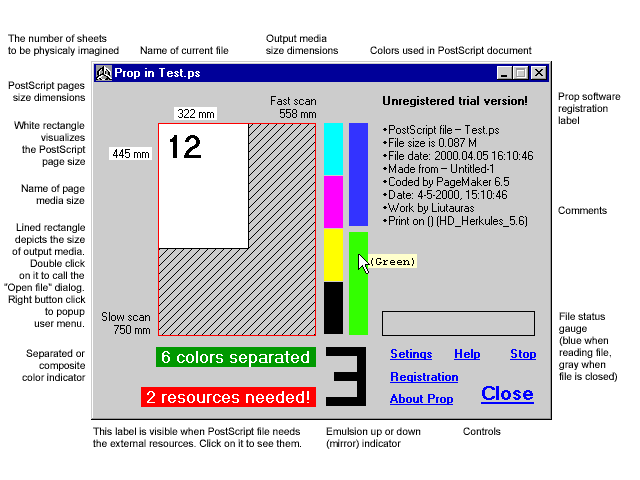
You can work with Prop in variety of ways:
1. Drag and drop
You can take the file from any file manager which supports drag and drop or even from any 'open file' dialog and drop it on:
a) desktop Prop shortcut.
b) opened main Prop window.
2. Association
You can associate the file extension to Prop. Choose association:
a) for all Windows system environment (available from Windows Explorer).
b) for Your favorite file manager only.
3. You can create the user menu item in Your favorite file manager. Some of them could let You to create the custom speed button or assign the hot key for operation with selected file.
4. You can use the command line. Type the parameter made of the path and name of Your file after the Prop executive file.
5. You can open the file directly from Prop main window. Double click on the output media rectangle to call the 'open file' dialog.
THE TIP: In settings window You have the option to set the allowance of only one Prop window copy on the desktop in the same time. If it is checked, every time You will be opening the file with Prop (for example after double click on file which type is associated with Prop) information will be displayed always in the same window. If at the time there is another file Prop is scanning it will be closed. In general You could interrupt Prop and use user menu at any time.
Use the customizable user popup menu:
By clicking with right mouse button on output rectangle area You could access the customizable user popup menu. Here You can perform three general actions on file which is in Prop focus:
To create menu items for custom application or directory select from menu "Open with..." or "Send to..." item. The menu modification window will appear, where You simply add, delete or change specific list of menu item names followed by path, which separated with "=" equality sign. Each menu item is represented by single string, so in one string must be only one equality sign. Please ensure that the disk drive in the path You typed is followed by column and backslash and application executable have original name. The typed paths are checked for presence and if path or application name is incorrect, the menu item won't be created.
THE TIP. All user menu commands call separate processes, it means that at the same time You could send as many files as You want anywhere You want to.